Guidelines
Create Store
Global Preferences - Back of the Card Credits
The Back of the Card Credits settings are on Menu A2. These are located in the lower left corner of you cards.
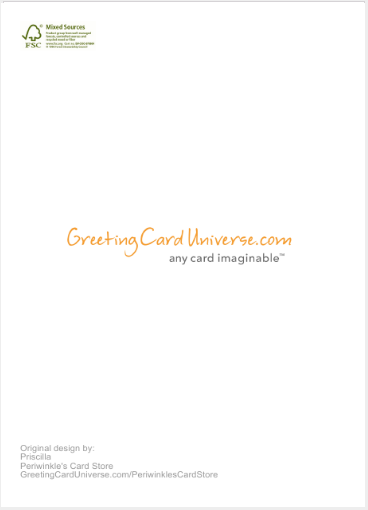
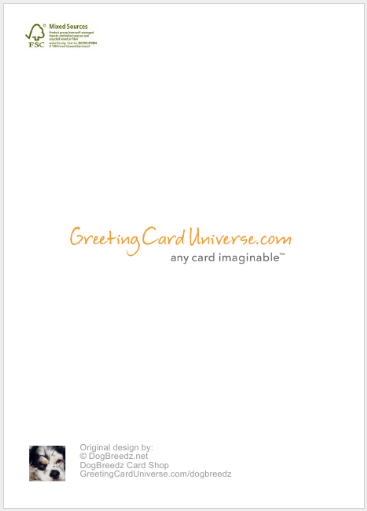
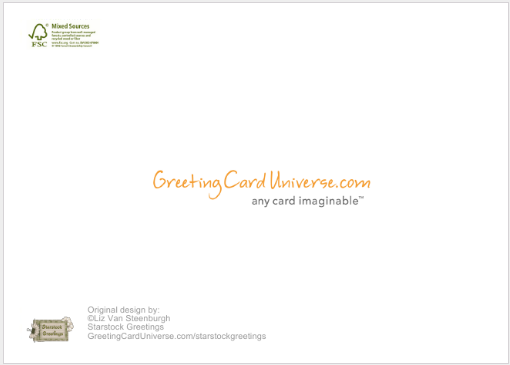
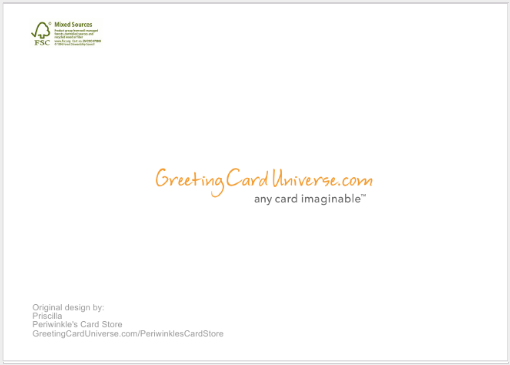
Artists have the option of having Artist Credits printed on the lower left corner of the Back of Cards (BOC). The Credits include:
- Your Display Name - as entered on Menu A2; Artist Profile
- Your Store Name - as entered on Menu B1
- Your Store URL - as entered on Menu B1
- Your Back of Card Profile Picture - as entered on Menu A2; BOC Picture. NOTE: This can also be a logo image rather than the artist image.
To enable one or more items for Back of Card Credits, go to Menu C9; (Back of Card Credits Editor) and make your selection:
- Display Name - Select Yes or No
- Store Name - Select Yes or No
- Store URL - Select Yes or No
- Profile Picture - Select Yes or No
Hit the SAVE CHANGES button to see a preview of your BOC credits close up and how it looks on landscape and portrait cards.
NOTE 1: You can opt to select NO for all, and the Credits area will be left blank.
NOTE 2: If you make any changes to any of the referenced items (Display Name, Store Name, Store URL, or Profile Picture), these will NOT be reflected on the BOC credits until you return to Menu C9 and do another SAVE CHANGES.
NOTE 3: Card shoppers have the option of ordering a Simplified Back of the Card Credits version at the time they order cards. This is because some cards like wedding invitation cards and sympathy cards are more appealing with a toned-down look on the back. This will consist of a more subtle GCU logo, no FSC logo and the artist credits LESS the BOC Picture. The artist name, storename and store URL will remain, the shopper can NOT opt to remove them.
SET GLOBAL PREFERENCES - GENERAL GLOBAL SETTINGS
SET GLOBAL PREFERENCES - CUSTOM CARD SETTING
SET GLOBAL PREFERENCES - FLIP e CARD SETTING